Monday, January 24, 2022

Export data to one file (csv) from different lists MS SharePoint server (PowerShell)

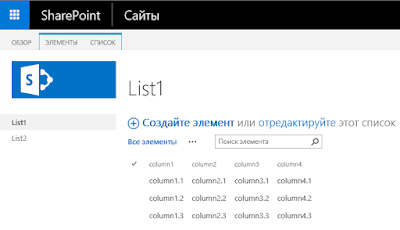
A question was created on the forum, where it was necessary to export the elements of 2 lists, the data of which must be displayed in one file (csv) using PowerShell.

First List (List1):

Seccond List (List2):


Powershell script:
if ((Get-PSSnapin "Microsoft.SharePoint.PowerShell" -ErrorAction SilentlyContinue) -eq $null) 
{ 
    Write-Host "Connect Sharepoint cmd-Let" 
    Add-PSSnapin Microsoft.SharePoint.PowerShell 
}
$SPweb = Get-SPWeb "http://sp-test/sites/RU_test"

$lst1 = $SPweb.Lists["List1"]
$lst2 = $SPweb.Lists["List2"]
$columns1 = ($lst1.Fields | where {$_.Title -like "column*"}).Title
$columns2 = ($lst2.Fields | where {$_.Title -like "column*"}).Title

$linesCount=$lst1.ItemCount
$colCount1 = $columns1.Count
$colCount2 = $columns2.Count
$result = @()
for ($line=0; $line -lt $linesCount; $line++)
{
    $line1 = $lst1.Items[$line]
    $line2 = $lst2.Items[$line]
    $props = @{}
    for ($col=0; $col -lt $colCount1; $col++)
    {
        $props+=@{$columns1[$col]=$line1[$columns1[$col]]}
    }
    for ($col=0; $col -lt $colCount2; $col++)
    {
        $props+=@{$columns2[$col]=$line2[$columns2[$col]]}
    }
    $result += New-Object PSObject -Property $props
}
$result | Export-Csv -Path 'C:\Temp\Export.csv' -NoTypeInformation -Encoding unicode -Delimiter "`t"

Run Powershell script and checking your file csv

Happy Coding!

Thursday, June 24, 2021

Creating a text file with the contents of a list item in a library using Event Receiver

Hello to everyone who follows my blog and today again raised the issue of the lack of functionality in the Workflow of the MS SharePoint server, which is created using the MS SharePoint Designer. On the forum, the user created a question in which he wanted, subject to the creation, modification of a list item, etc., so that a text document in the library was created, filled with the contents (column values) of this list item.
The user tried to do this using the standard workflow tools, but faced the fact that the file created in this way could not be filled in, the user also tried to run Javascript using the Workflow, which is basically impossible. And I advised him to use the Event Receiver in this case it is the best solution. How to create an Event Receiver in his articles has already been described, for those who are interested, follow the link. So, we create an Event Receiver, select the action at which our event "item was added" will be triggered, and add the code where we call the current list item (getlistitem), create variables, a text file in the Temp folder, add Unicode support for your language, fill the file with data, add it to the document library and delete the temporary text file.
using System;
using System.IO;
using System.Text;
using Microsoft.SharePoint;

namespace EventRecieverTest.EventReceiverTestList
{
    public class EventReceiverTestList : SPItemEventReceiver
    {
        public override void ItemAdded(SPItemEventProperties properties)
        {
            using (SPWeb web = properties.OpenWeb())
            {
                try
                {
                    //getcurrentitem
                    SPListItem currentItem = properties.ListItem;
                    //create variable
                    string title = currentItem["Title"].ToString();
                    string server = currentItem["Server"].ToString();
                    DateTime Created = DateTime.Parse(currentItem["Created"].ToString());
                    //create text file
                    string path = @"C:\Temp\" + title + ".txt";
                    //add to Encoding
                    Encoding encoding = Encoding.GetEncoding("UTF-8");
                    if (!File.Exists(path))
                    {
                        using (FileStream fs = new FileStream(path, FileMode.CreateNew))
                        {
                            using (StreamWriter writer = new StreamWriter(fs, encoding))
                            {
                                writer.WriteLine("Наименование: " + title);
                                writer.WriteLine("Сервер: " + server);
                                writer.WriteLine("Дата создания: " + Created);
                                writer.Close();
                            }
                        }
                        //Add file to library
                        SPList lib_destination = (SPDocumentLibrary)web.Lists["Shared Documents"];
                        var targetFolder = lib_destination.RootFolder;
                        var fileContent = File.ReadAllBytes(path);
                        var fileUrl = Path.GetFileName(path);
                        targetFolder.Files.Add(fileUrl, fileContent);
                        //remove cash file
                        File.Delete(path);
                    }
                }
                catch (Exception ex)
                {
                    File.WriteAllText(@"C:\Temp\error.txt", ex.ToString());
                }
            }
        }
    }
}

1. We check, go to the "Test" list, create a list item, where we fill in our column data and save the list item.

2. Go to the document library and see our created text file.

3. We open the file and look at its contents, everything matches.
Happy Coding!

Wednesday, November 11, 2020

Delete a certain number of items SharePoint List Powershell Script

Due to the closure of "the blog TechNet" I transfer all my articles in the blog :)

To delete a fixed number of items in the list of WSS, SharePoint server without putting them in the Recycle Bin, this is very convenient, since the cleaning of the Recycle Bin takes a certain amount of time for the Site Collection Administrator.
This script is easy to use after the migration or backup of the lists / libraries in which you need to delete a certain number of items.

Pre-requisites:
1.PowerShell 2.0 and higher
2.WSS or SharePoint server 2007, 2010, 2013, 2016, 2019.

Powershell script:
#Load System.Reflection.Assembly WSS or SharePoint server 2007 only
[System.Reflection.Assembly]::Load("Microsoft.SharePoint, Version=12.0.0.0, Culture=neutral, PublicKeyToken=71e9bce111e9429c")
[System.Reflection.Assembly]::Load("Microsoft.SharePoint.Portal, Version=12.0.0.0, Culture=neutral, PublicKeyToken=71e9bce111e9429c")
[System.Reflection.Assembly]::Load("Microsoft.SharePoint.Publishing, Version=12.0.0.0, Culture=neutral, PublicKeyToken=71e9bce111e9429c")
[System.Reflection.Assembly]::Load("System.Web, Version=2.0.0.0, Culture=neutral, PublicKeyToken=b03f5f7f11d50a3a")
#PSSnapin SharePoint server 2010, 2013, 2016, 2019
if(!(Get-PSSnapin Microsoft.SharePoint.PowerShell -ErrorAction:SilentlyContinue)) 
{ 
    Add-PsSnapin Microsoft.SharePoint.PowerShell 
}
#Enter your parametrs here site, listname, count elements
$siteUrl = "http://sharepoint/sites/Department"
$listName = "Main"
$batchSize = 1000
$site = new-object Microsoft.SharePoint.SPSite($siteUrl)
$web = $site.OpenWeb()
write-host "Web is: $($web.Title)"
$list = $web.Lists[$listName];
write-host "List is: $($list.Title)"
while ($list.ItemCount -gt 0)
{
  write-host "Item count: $($list.ItemCount)"
  $batch = "<?xml version=`"1.0`" encoding=`"UTF-8`"?><Batch>"
  $i = 0
  foreach ($item in $list.Items)
  {
    $i++
    write-host "`rProcessing ID: $($item.ID) ($i of $batchSize)" -nonewline
    $batch += "<Method><SetList Scope=`"Request`">$($list.ID)</SetList><SetVar Name=`"ID`">$($item.ID)</SetVar><SetVar Name=`"Cmd`">Delete</SetVar><SetVar Name=`"owsfileref`">$($item.File.ServerRelativeUrl)</SetVar></Method>"
    if ($i -ge $batchSize) { break }
  }
  $batch += "</Batch>"
  $result = $web.ProcessBatchData($batch)
  write-host "Emptying Recycle Bin..."
  $web.RecycleBin.DeleteAll()
  write-host
  $list.Update()
}

Happy Coding!

Export List Items (MS SharePoint) to MS SQL server Database table using C#(CSOM)

Due to the closure of "the blog TechNet" I transfer all my articles in the blog :)

When developing a new project, I needed to download the data from the MS SharePoint list to the MS SQL Server table, where I used C#(CSOM). This code is preferable for me, flexible and not too resource-intensive, as a rule I use it for events by Custom Timer Job, but I am also sure that he is approaching the example and for Event Reciever and other opportunities. To work with C#(CSOM), use namespace (reference) Microsoft.SharePoint.Client.
ClientContext context = new ClientContext("http://sp/sites/test");
Web web = context.Web;
List list = context.Web.Lists.GetByTitle("DataList");
context.Load(list);
context.ExecuteQuery();
CamlQuery query = new CamlQuery();
query.ViewXml = "";
ListItemCollection allitems = list.GetItems(query);
context.Load(allitems);
context.ExecuteQuery();
SqlConnection cn = new SqlConnection();
DataSet EmpDataSet = new DataSet();
SqlDataAdapter da;
cn.ConnectionString = @"Data Source=SQLServer;Initial Catalog=DataTable;Integrated Security=SSPI";
cn.Open();
da = new SqlDataAdapter("select * from [dbo].[Table_Data]", cn);
SqlCommandBuilder builder = new SqlCommandBuilder(da);
da.Fill(EmpDataSet, "Table_Data");
DataTable table = EmpDataSet.Tables[0];
foreach (ListItem listitem in allitems)
{
    DataRow row = table.NewRow();
    row["Date"] = System.TimeZone.CurrentTimeZone.ToLocalTime(Convert.ToDateTime(listitem["Created"].ToString()));
    row["Column1"] = listitem["Title"].ToString();
    row["Column2"] = listitem["Event1"].ToString();
    row["Author"] = listitem["AuthorPosition"].ToString();
    row["DateToday"] = System.TimeZone.CurrentTimeZone.ToLocalTime(Convert.ToDateTime(listitem["Today"].ToString()));
    table.Rows.Add(row);
    builder.GetInsertCommand();
}
da.Update(EmpDataSet, "Table_Data");

Happy Coding!

Show file size documents library SharePoint in Kb, Mb (JQuery)

Due to the closure of "the blog TechNet" I transfer all my articles in the blog :)

You could add JQuery to obtain and display document size into your custom search display template. The code below is about how to show document size beside the document name of all documents uploaded into a SharePoint document library.
You could use the function in the code that obtaining the file size depend on the URL of the document.
You must have the rights to Design web part.

Pre-requisites
SharePoint server 2010, 2013, 2016, 2019.
<script type="text/javascript" src="http://code.jquery.com/jquery-1.11.3.min.js"></script>
<script type="text/javascript">
function hdrDetails(i, elm, cl) { 
    cl = cl/1024;  //divide content-length by 1024 (KB) 
    var sz = cl>1024?"MB":"KB";  //if cl is still big, set to MB 
    cl = cl>1024?cl/1024:cl;  //if cl is still big, divide again 
    var len = $(elm).eq(i).text().length;  //check the link's text length 
    if(len > 0) { 
        //add a file size 
        $(elm).eq(i).after(" (" + cl.toFixed(2) + " " + sz + ")"); 
    } 
} 
$(function() { 
    var elm="a[href$='.pdf'],"+ //only the file types we want 
	"a[href$='.doc'],"+ 
	"a[href$='.ppt'],"+ 
	"a[href$='.xls'],"+ 
	"a[href$='.docx'],"+
	"a[href$='.pptx'],"+
	"a[href$='.mht'],"+
	"a[href$='.xlsx']"; 
    $(elm).each(function(i, e) { 
        if (e.hostname && e.hostname == location.hostname) { 
            $.ajax({ 
                type: "get", 
                url: $(this).attr("href"), 
                complete: function(xhr, textStatus) { 
                    var cl=xhr.getResponseHeader("content-length"); 
                    hdrDetails(i, elm, cl); //call the calculation fn 			
                } 
            }); 
        } 
    }); 
}); 
</script>

Happy Coding!

Export File (txt,csv) to SharePoint List using C#

Due to the closure of "the blog TechNet" I transfer all my articles in the blog :)

There are always non-standard tasks in MS SharePoint server, one of such tasks is the export of data from the file (txt, csv) to the SharePoint list using C# to the example in the Event Receiver. Do not forget, when using the data array 'split' string [] arr = line.Split (';') specify a character that separates the values of your array.
Demonstration, download the link above:

1.CSV-file:

2.Code C#:
using Microsoft.SharePoint;
using System;

namespace EventDeployTest2.EventReceiver2
{
    public class EventReceiver2 : SPItemEventReceiver
    {
        public override void ItemUpdated(SPItemEventProperties properties)
        {
            using (SPSite oSPsite = new SPSite("http://sharepoint/sites/test"))
            {
                using (SPWeb oSPWeb = oSPsite.OpenWeb())
                {
                    SPList list = oSPWeb.Lists["Test"];
                    string[] lines = System.IO.File.ReadAllLines(@"\\sharepoint\sites\test\SiteAssets\user.csv");
                    SPListItem itemToAdd = null;
                    foreach (string line in lines)
                    {
                        string[] arr = line.Split(';');
                        itemToAdd = list.Items.Add();
                        itemToAdd["Name"] = Convert.ToString(arr[0]);
                        itemToAdd["Surname"] = Convert.ToString(arr[1]);
                        itemToAdd["Department"] = Convert.ToString(arr[2]);
                        itemToAdd["Post"] = Convert.ToString(arr[3]);
                        itemToAdd["Position"] = Convert.ToString(arr[4]);
                        itemToAdd.Update();
                    }
                }
            }
        }
    }
}

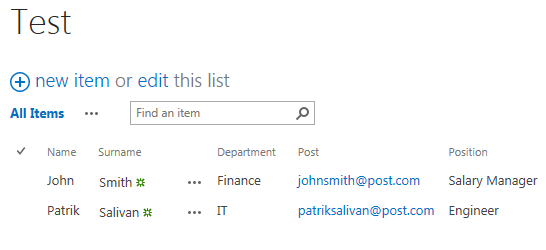
3.Result (Export to SP List):

Happy Coding!

Get last value "Check In Comment" document library SharePoint REST API

Due to the closure of "the blog TechNet" I transfer all my articles in the blog :)

When you check in a document, you can add a brief comment about the changes you made. This is a great way for others to see a summary of your edits. If you ever need to edit a comment you can check out the document again, immediately check it back in, select Overwrite the current version, and then add the new comment in the Comment box.
This article shows how to use the REST API to load a last value from the "Check In comment" field in the document library.

Pre-requisites
1.SharePoint server 2013, 2016, 2019.
2.Editor for working with Javascript files.
window.onload= function(){
    // getting the GUID of list.
    var listGUID = _spPageContextInfo.pageListId;
    // getting the item id
    var itemId = '1';
    // clearing the value inside the tdCheckInComment
    $("#tdCheckInComment").html('');
    // checking if list guid found or not.
    if(listGUID)
    {
        //removing {} from the variable.
        listGUID = listGUID.replace(/[{}]/g, "");
        // checkin if item id is found or not.
        if(itemId)
        {
            var comment = GetLastCheckInComment(listGUID,itemId);
            if(comment)
            {
                $("#tdCheckInComment").html(comment);
            }
        }
    }
}
function GetLastCheckInComment(listGUID,itemId) {
    var returnValue;
    try {
        jQuery.ajax({
            url: _spPageContextInfo.webAbsoluteUrl + "/_api/web/lists(guid'" + listGUID + "')/items(" + itemId + ")/File/CheckInComment",
            type: "GET",
            async: false,
            headers: { "Accept": "application/json;odata=verbose" },
            success: function (data, textStatus, xhr) {
                returnValue = data.d.CheckInComment;
            },
            error: function (data, textStatus, xhr) {
                console.error('Error while getting the last check in comment.');
            }
        });
    }
    catch (ex) {
    }
    return returnValue;
}
<table>
<tr>
    <th><label id="lblComment">Comment:  </label></th>
    <td id="tdCheckInComment"></td>
</tr>
</table>

Happy Coding!

Reset ID to 1 SharePoint list\library

Due to the closure of "the blog TechNet" I transfer all my articles in the blog :)

If you need to reset the list item ID, for example to the number "1" or the library in SharePoint, then you can use PowerShell and access the WSS_Content database to the required lists or library, for this we need to know the GUID list or library, example through SharePoint Designer.

Pre-requisites:
1. PowerShell 2.0 and higher,
2. WSS or SharePoint server 2007, 2010, 2013, 2016, 2019,
3. SharePoint Designer,
4. SQL Management studio.

Powershell script:
[System.Reflection.Assembly]::LoadWithPartialName("System.Data")
$conn = New-Object "System.Data.SqlClient.SqlConnection" -ArgumentList "server=SQLSERVER-01; database=USERLOCAL; integrated security=SSPI"
$conn.Open()
$cmd = $conn.CreateCommand()
$cmd.CommandText = "UPDATE WSS_Content.dbo.AllListsAux set NextAvailableId=1 where ListID='D4D2CF11-1F16-4122-BA50-05A6A9CFD27E'"
$cmd.ExecuteNonQuery()

Transact-SQL:
UPDATE WSS_Content.dbo.AllListsAux set NextAvailableId=1 where ListID='D4D2CF11-1F16-4122-BA50-05A6A9CFD27E'

Happy Coding!

Export MS SQL server data to SharePoint List (PowerShell)

Due to the closure of "the blog TechNet" I transfer all my articles in the blog :)
If you need to download information from the MS SQL server table to the list on the SharePoint server, use PowerShell.
In this code, you connect to the database using SSPI and operate with standard T-SQL commands, then connect to the SharePoint list and upload the data.
Pre-requisites
1. PowerShell 2.0 and higher,
2. WSS or SharePoint server on-premises 2007, 2010, 2013, 2016, 2019.
3. SQL management studio (only view).
[System.Reflection.Assembly]::LoadWithPartialName("System.Data")
#SQL Database server
$conn = New-Object "System.Data.SqlClient.SqlConnection" -ArgumentList "server=SQLSERVER; database=USER; integrated security=SSPI"
$conn.Open()
$cmd = $conn.CreateCommand()
$cmd.CommandText = "select [LastName], [FirstName], [MiddleName], [Email], [Department], [Office], [Job] from [dbo].[OLE_USER_Destination]"
$adapter = New-Object "System.Data.SqlClient.SqlDataAdapter" -ArgumentList $cmd
#variable SQL datatable 
$table = New-Object "System.Data.DataTable" -ArgumentList "Table1"
$adapter.Fill($table)
#SharePoint List
if(!(Get-PSSnapin Microsoft.SharePoint.PowerShell -ErrorAction:SilentlyContinue)) 
{ 
    Add-PsSnapin Microsoft.SharePoint.PowerShell 
}
    $web = Get-SPWeb http://sharepoint/sites/Department
    $list = $web.Lists["YOURLIST"]
    #Load variable SQL datatable
    $table | % { 
    $item = $list.AddItem();
    $item["LastName"]=$_.LastName;
    $item["FirstName"]=$_.FirstName;
    $item["MiddleName"]=$_.MiddleName;
    $item["Email"]=$_.Email;
    $item["Department"]=$_.Department;
    $item["Office"]=$_.Office;
    $item["Job"]=$_.Job;
    $item.Update();
}

Happy Coding!

Friday, July 31, 2020

JSLink for customizing list items using date and time as an example

In this article, I will show a simple example of how to separate the date and time string of list items, using the "example " of one of the ask in the MSDN forum.
(function() { 
        var linkFilenameFiledContext = {}; 
        linkFilenameFiledContext.Templates = {}; 
        linkFilenameFiledContext.Templates.Fields = { 
            "Date": { "View": linkFilenameFiledTemplate } 
        };
            SPClientTemplates.TemplateManager.RegisterTemplateOverrides(linkFilenameFiledContext); 
    })(); 

    function linkFilenameFiledTemplate(ctx) {
        var currentdate = ctx.CurrentItem["Date"];
        if (currentdate != "") {
        var date = currentdate.toString().substring(currentdate.lastIndexOf(" "), - 1);
        var time = currentdate.toString().substring(currentdate.lastIndexOf(" ") + 1);
        return date + "<br>" + time;
        }
    }

Result:
Happy Coding!

Friday, December 27, 2019

Get attachments in list items JSlink (REST API)

In this article I’ll give an example of how to use REST API and JSlink to make a request to attachments in list items which will be useful for working with current and future development projects on the MS SharePoint server (2013, 2016, 2019, Online) platform.
function AttachmentFiledTemplate(ctx){ 
    var listItem = ctx.CurrentItem;
    var listTitle = ctx.ListTitle;
    var spHostUrl = ctx.HttpRoot;
    var itemId = listItem.ID;
    context = ctx;
    var queryUrl = spHostUrl + "/_api/web/lists/getbytitle('" + listTitle + "')/items('" + itemId + "')/AttachmentFiles";
    $.ajax({
    url: queryUrl,
        headers: { 
            "accept": "application/json; odata=verbose",
        },
        method: "GET",
         success: function(data){
            $.each(data.d.results, function(){
                //url attachments in list Items
                var attachmenturl = this.ServerRelativeUrl;
                console.log(attachmenturl);
            })
        },
        error: function ajaxError(response){
        alert(response.status + ' ' + response.statusText);
        }
    });
}

We implement using the REST API the name of the attached files in the list items (Example):
(function () {
    var linkFiledContext = {};
    linkFiledContext.Templates = {};
    linkFiledContext.Templates.Fields = {    
        "Attachments": { "View": AttachmentsFiledTemplate }
    };
    SPClientTemplates.TemplateManager.RegisterTemplateOverrides(linkFiledContext);

})();

function AttachmentsFiledTemplate(ctx) {
    var itemId = ctx.CurrentItem.ID;
    var listName = ctx.ListTitle;       
    return getAttachments(listName, itemId);
}

function getAttachments(listName,itemId) {  
    var url = _spPageContextInfo.webAbsoluteUrl;
    var requestUri = url + "/_api/web/lists/getbytitle('" + listName + "')/items(" + itemId + ")/AttachmentFiles";
    var str = "";
    $.ajax({
        url: requestUri,
        type: "GET",
        headers: { "ACCEPT": "application/json;odata=verbose" },
        async: false,
        success: function (data) {
            for (var i = 0; i < data.d.results.length; i++) {
                str += "<a href='" + data.d.results[i].ServerRelativeUrl + "'>" + data.d.results[i].FileName + "</a>";
                if (i != data.d.results.length - 1) {
                    str += "<br/>";
                }                
            }          
        },
        error: function (err) {
        }
    });
    return str;
}

Result:
Happy Coding!

Thursday, December 12, 2019

Server Error '/' Application: Could not load file or assembly or one of its dependencies. The system cannot find the file specified.

Hello everyone, let's talk about the error that comes out after adding a new assembly to the project, for example via NuGet Package in Visual studio (Template Project: SharePoint 2016 - Visual Web Part).
Let's go step by step:
1. Open Visual studio on MS SharePoint server 2016 (On-Premises) and create new project - SharePoint 2016 - Visual Web Part,
2. Add to URL and choise "Deploy as a farm solution",
3. Add simple code (example: if (!IsPostBack) {//your simple code}) in the void Page_Load,
4. Further we need to add assembly (example: "TemplateEngine.Docx") for the project in NuGet Package -> "Tools" -> "NuGet Package manager" -> "Package manager Console", -> "Install-Package TemplateEngine.Docx -Version 1.1.4",
5. We are convinced that the assembly was added and displayed in "Reference", add simple code to example and weel see is not errors in "Error List".
6. "Build" -> "Rebuild Solution" -> "Deploy Solution".
7. Add our solution in the Page and weel see the next error:


This behavior at first glance seems strange, we added the assembly through the NuGet Package console, it would seem that when adding the assembly, it is registered in the Reference and then in all the project properties. But the error that the assembly file is missing is still there. So how to fix it quickly and most importantly correctly, again we go step by step:
1. In our project there is folder "Package" in which there is file "Package.package" a file associated with Features, where the paths for assemblies in the current project are contained, open it and immediately go to the "Advanced" tab and "Add Existing Assembly":


2. The "Add Existing Assembly" window has opened, where you can add the assembly, follow the path to our project to the \bin\Debug folder and find our assembly - "TemplateEngine.Docx.dll".
3. Choose "WebApplication" and add new item in "Safe Control": "Namespace": TemplateEngine.Docx.dll, "Assembly Name": TemplateEngine.Docx.dll.


4. We see our record and again collect our project and publish it on the server: "Build" -> "Rebuild Solution" -> "Deploy Solution".


5. Refresh Page!!!.

Happy Coding!

Friday, November 15, 2019

Checking if a User is in an SPGroup

Many know an example "How to check if user exists in a particular sharepoint group or not programatically":
using System;
using System.Linq;
using Microsoft.SharePoint;

namespace ConsoleApplication
{
    class Program
    {
        static void Main(string[] args)
        {
            string userName = "DOMAIN\\user";
            string groupName = "Home Members";
            using (SPSite Site = new SPSite("http://sp"))
            {
                using (SPWeb Web = Site.OpenWeb())
                {
                    SPUser user = Web.EnsureUser(userName);
                    if (user.Groups.Cast().Any(g => g.Name.Equals(groupName)))
                    {
                        Console.WriteLine("User " + userName + " is a member of group " + groupName);
                    }
                    else
                    {
                        Console.WriteLine("User " + userName + " is NOT a member of group " + groupName);
                    }
                }
            }
        }
    }
}
The example is excellent, in the end we will write "bool" using "ToUpper()", which at the machine level works much faster, because Microsoft optimized it:
bool checkuser = user.Groups.Cast().Any(g => g.Name.ToUpper() == "Home Members".ToUpper());
//or GetCurrentUser
bool checkgcuser = SPContext.Current.Web.CurrentUser.Groups.Cast().Any(g => g.Name.ToUpper() == "Home Members".ToUpper());
Happy Coding!